Sunday, May 25, 2014

An Application Package on Traffic Management System (TMS) ~~ VisualBasic Code Snippet + GUI Design


Traffic Light Interface Design


-: Tools Used : - 
1. label as Counter
2. OvalShape as Redlight, GreenLight and YellowLight
3. 2 Timer controls as Timer and TimerNext

Source code for "Traffic Light Interface Design"

Public Class Form2  'Class Declaration

    Private Sub Timer_Tick(ByVal sender As System.Object, ByVal e As System.EventArgs) Handles Timer.Tick

        Counter.Text = Counter.Text - 1
        If Counter.Text = 12 Then
            Counter.ForeColor = Color.Yellow
            YellowLight.BackColor = Color.Yellow
            RedLight.BackColor = Color.Black

        ElseIf Counter.Text = 0 Then
            GreenLight.BackColor = Color.Green
            Counter.ForeColor = Color.Green
            YellowLight.BackColor = Color.Black

            Timer.Enabled = False
            Counter.Text = 70
            TimerNext.Enabled = True

        End If
    End Sub

    Private Sub TimerNext_Tick(ByVal sender As System.Object, ByVal e As System.EventArgs) Handles TimerNext.Tick

        Counter.Text = Counter.Text - 1
        If Counter.Text = 12 Then
            Counter.ForeColor = Color.Red

        ElseIf Counter.Text = 0 Then
            GreenLight.BackColor = Color.Black
            Counter.ForeColor = Color.Red
            RedLight.BackColor = Color.Red

            TimerNext.Enabled = False
            Counter.Text = 70
            Timer.Enabled = True

        End If
    End Sub

End Class

Saturday, April 12, 2014

Printing Duplicate Character|String in a Sentence ~~ Java Code Snippet

Shown below is the source code for printing duplicate character or string in a sentence. Simply pass in the char/string as a command line argument i.e. args

~~~~~~~~~~~~~~~~~~~~~~~~~
import java.util.*;
import static java.lang.System.out;

public class Duplicate
{
  public static void main(String... args)
   {

   Set<String> s  = new HashSet<String>();
for(String ss : args)

 if (!s.add(ss))
  {
out.println("Duplicate Found:" + ss);
   }

   }
}

~~~~~~~~~~~~~~~~~~~~~~~~~

Monday, March 3, 2014

Obtaining Port Number for SQL Server Database Connection

Two simple ways of obtaining your port number for Connection String usage.

-- From start, right click on computer then click on Manage.
-- Click on Services and Applications
     |
     --SQL Server configuration manager
           |
 **      --SQL Server <year> Network configuration       
                   |
                    --Protocols for <Server type>
--Right click on TCP/IP then, select/click_on properties.
--Select the IP Address tab, look for TCP port; DONE!!!

          OR

-- From start 
     |
     -- All Programs
           |
           --Server configuration manager
           |
            --Microsoft SQL Server <year> 
                   |
                   --SQL Server <year> configuration manager
                 
 Continue from ** above

Statement, PreparedStatement and CallableStatement ~JDBC~ "Java Code"

Below are sample code used for database connection. In this case SQL Server database is used. 
~~~~~~~~~~~~~~~~~~
Using Statement Interface
~~~~~~~~~~~~~~~~~~

import java.sql.DriverManager;
import java.sql.Connection;
import java.sql.Statement;
import java.sql.ResultSet;
import java.sql.SQLException;

public class DBase
{
     public static void main(String [] args) throws SQLException, ClassNotFoundException
     {
        try
        {
           // load driver
          Class.forName("com.microsoft.sqlserver.jdbc.SQLServerDriver"); 
        }
        catch (ClassNotFoundException cnfe)
        {
            System.out.println(" ClassNotFoundException thrown");
        }

        try
        {
        // my Connection_String, which will definitely be different from yours' 
        String ConnString =  "jdbc:sqlserver://localhost:1433; databaseName= clems; username=Douby;password=clems";

        // creating the connection
        Connection conn = (DriverManager.getConnection(ConnString));
        Statement stmt = conn.createStatement();

        /* Using ResultSet.... using executeQuery() without ResultSet would throw a                  SQLException. REASON ~> executeQuery() returns result  */

        String sql_stmt = "Select First_Name from Employee";
       ResultSet rs = stmt.executeQuery(sql_stmt);

        while (rs.next())
        {
             //print all names in the First_Name column
            String a = rs.getString("First_Name");
            System.out.println(a);  
        } 
        }        
        catch (SQLException   sql)
        {
            System.out.println("SQLException thrown");
        }
    }
  }

~~~~~~~~~~~~~~~~~~~~~~~~
Using PreparedStatement Interface
~~~~~~~~~~~~~~~~~~~~~~~~
import java.sql.DriverManager;
import java.sql.Connection;
import java.sql.PreparedStatement;
import java.sql.SQLException;


public class DBase
{
     public static void main(String [] args) throws SQLException, ClassNotFoundException
     {
        try
        {
         // loading sql server driver
          Class.forName("com.microsoft.sqlserver.jdbc.SQLServerDriver");
        }
        catch (ClassNotFoundException cnfe)
        {
            System.out.println(" ClassNotFoundException thrown");
        }

        try
        {
           // 1433 = port number; Dont know how to get your port number? 
           // click here. 
        String ConnString =  "jdbc:sqlserver://localhost:1433; databaseName= clems; username=Douby;password=clems";
        Connection conn = (DriverManager.getConnection(ConnString));
        Statement stmt = conn.createStatement();

        String [] Fname = {" Wale", " Shina", " David"};
        String [] Lname = {" Ishegun", " Olowo", " Almond"};
        int [] Age = {42, 32, 53};

        String sql = "Insert into Employee values(?, ?, ?) ";

        PreparedStatement pstmt = conn.prepareStatement(sql);

        for (int i = 0; i< Fname.length; i++)
        {
            pstmt.setString(1, Fname[i]);
            pstmt.setString(2, Lname[i]);
            pstmt.setInt(3, Age[i]);

            pstmt.executeUpdate();
        }
        }                
        catch (SQLException   sql)
        {
            System.out.println("SQLException thrown");
        }
    }
  }
   
~~~~~~~~~~~~~~~~~~~~~~~
Using CallableStatement Interface
~~~~~~~~~~~~~~~~~~~~~~~


Wednesday, February 26, 2014

Hoe to Create/Establish a Java--SQL Server Database Connection

Ooo!k! First things first; you have to configure SQL Server, i mean, create an instance (sql server authentication ~>"optional"), Grant permissions, Enable TCP/IP, Get port number then Restart SQL service.
After that, you have to get/download ms sql server jdbc driver. if you already have then, unzip to any dir/location of your choice. all you need is the sqljdbc4.jar OR sqljdbc.jar file. Copy either file, based on you Connection/DBase type, paste on your desktop for easy access.
Next;
Add the sqljdbc.jar file in your 'compile time library'... see example on adding sqljdbc.jar using NetBeans IDE.

From your file menu item, click on "project properties (project_name); 
under categories list, select libraries

Next, click on 'Add JAR/Folder' button the add the sqljdbc.jar file, then click 'Ok'....Up next is your code.

Your code should look similar to the below code:
~~~~~~~~~~~~~~~~~~~~~~~~~~~~~~~~~~~~~~~~~~~~~~~~
import java.sql.DriverManager;
import java.sql.Connection;
import java.sql.Statement;
import java.sql.ResultSet;
import java.sql.SQLException;

public class DBase {

     public static void main(String [] args) throws SQLException, ClassNotFoundException
     {
        try
        {
          Class.forName("com.microsoft.sqlserver.jdbc.SQLServerDriver");

    String ConnString =  "jdbc:sqlserver://localhost:1433; databaseName= clems; username=Douby;password=clems";

        Connection conn = (DriverManager.getConnection(ConnString));
        Statement stmt = conn.createStatement();
        String sql_stmt = "Select First_Name from Employee";
       ResultSet rs = stmt.executeQuery(sql_stmt);

        while (rs.next())
        {
            String a = rs.getString("First_Name");
            System.out.println(a);
        } 
        }        
        catch (SQLException | ClassNotFoundException sql_cnfe)
        {
            System.out.println(" ClassNotFoundException thrown");
            sql_cnfe.printStackTrace();
        }
    }
  }
~~~~~~~~~~~~~~~~~~~~~~~~~~~~~~~~~~~~~~~~~~~~~~~~
Still don't get it? feel free to reach me


Thursday, February 20, 2014

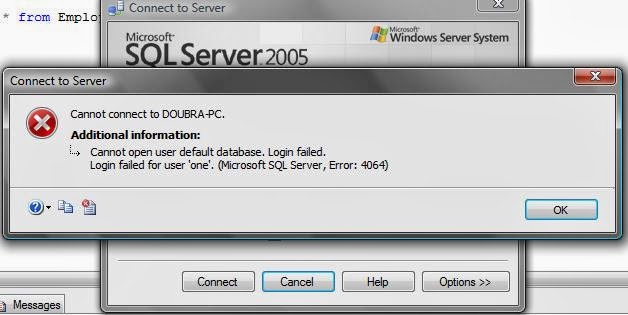
Microsoft SQL Server, Error: 4064


After creating a new SQL Server Authentication (login and password), you are bound, may be not, to get the above error message "Microsoft SQL Server, Error: 4064". But not to worry, cos problem's solved. All you have to do is first connect using Windows Authentication. Then, On the Object Explorer window, Right click on Server name_type, click on properties ~> Select permissions page, select your login name then Grant permissions i.e. Enable every check Boxes under the Grant column. Reload, Try to connect again.

Solved. Still not connecting? comment.

How to Create a new SQL Server Authentication login
~~~~~~~~~~~~~~~~~~~~~~~~~~~~~~~~~~~~~~
follow the below steps:

  • Open object explorer, connect using windows authentication
  • Back to Object explorer, Right click on Security ~> New ~> Login
  • Select SQL Server Authentication r.button
  • Enter login details (name and password) then click 'OK' 
If you get error 4064 when trying to connect with your newly created login details, then, read the above.

Wednesday, February 12, 2014

Guidelines for Writing a Perfect Final Year Computer Science Project/Report

Shown below is the Guideline for writing a perfect final year computer science project/report
  • Title Page
Title page, Certification, Dedication, Acknowledgement, Table of content, Abstract
  • Chapter One – Introduction
-          Statement of problem (problem identification) & theory behind the problem
-          Aims/Objectives
-          Scope
-          Methodology
-          Definition of terms
  • Chapter Two – Literature Review
Review of study, review of what has been done in the area of research with technical details
  • Chapter Three – System Analysis and Design
System Analysis
-          System description
-          Historical background of the case study
-          Evaluation of the current system
-          Benefit of the current system
-          Problem of the current system
-          Technical details to solution of the problem
System Design
-          Overview of the new system
-          Output design
-          Input design
-          Database design
-          Process design
** Students are advised to used at least two of the following tools
                     i.            Program flowchart
                    ii.            Data flowchart
                   iii.            Algorithms
                  iv.            Uml e.t.c
  • Chapter Four – System Implementation and Documentation
-          Choice of programming language
-          Choice of DBMS
-          System requirement
-          Hardware requirement
-          Software requirement
-          System testing
-          File conversion
-          System documentation
  • Chapter Five – Summary, Conclusion and Recommendation
-          Summary of findings
-          Limitations
-          Conclusion
-          Recommendation
  • References
  • Appendices
-          Chart/Tables
-          Diagrams
-          Source codes
-          Screen shots


Friday, February 7, 2014

Microsoft SQL Server, Error: 18456

Cannot connect to User_Name-PC
Login failed for User_Name-PC (Microsoft SQL Server, Error: 18456) 


This is one annoying error message you get when trying to connect to an instance of SQL Server BUT, not to worry, COS, problem's solved.
All you have to do is "turn user account control off". Follow the below steps to turn off user account control

Goto Start ~> Control Panel ~> User Account ~> Turn user account control on or off ~> Then, uncheck the 'Use User Account control (UAC) to help protect your computer' check box ~> Click OK, you would get the below message asking for sytem restart, click restart now. thats all. job's DONE.

Thursday, February 6, 2014

Hoe to Create/Establish a VBasic--SQL Server Database Connection


Shown in the above form is a first name, last name and age text boxes named txtFName, txtLName and txtAge respectively. lastly, is the update button named BtnUpdate
~~~~~~~~~~~~~~~~~~~~~~~~~~~~~~~~~~~
Source Code ~> Vbasic 2010 vs Sql Server 2005
~~~~~~~~~~~~~~~~~~~~~~~~~~~~~~~~~~~
Imports System.Data
Imports System.Data.SqlClient

Public Class frm_main  ' Class Begins Here

    ' Declare a new Sql_client_connection = SqlConn
    ' Sql_Command = SqlComm AND
    ' Sql_Connection_String
    Dim SqlConn As New SqlClient.SqlConnection
    Dim SqlComm As New SqlCommand
    ' Data Source = Server Name; Initial Catalog = DataBase Name
    Dim SqlConnString = "Data Source=DOUBRA-PC;Initial Catalog= clems;Integrated Security=True "

    Private Sub frm_main_Load(ByVal sender As System.Object, ByVal e As System.EventArgs) Handles MyBase.Load

        SqlConn.ConnectionString = SqlConnString
        SqlConn.Open()

    End Sub

    Private Sub BtnUpdate_Click(ByVal sender As System.Object, ByVal e As System.EventArgs) Handles BtnUpdate.Click

        SqlComm.CommandText = "Insert into Employee values(' " & txtFName.Text & " ', ' "          & txtLName.Text & " ', ' " & txtAge.Text & " ')"

        SqlComm.CommandType = CommandType.Text
        SqlComm.Connection = SqlConn
        SqlComm.ExecuteNonQuery()

    End Sub
End Class    ' Class Ends Here

Source code screen shot
~~~~~~~~~~~~~~~~


Data base screen shot
~~~~~~~~~~~~


Still don't get it, watch the below video

Tuesday, February 4, 2014

Hoe to Create/Establish a VBasic--MS Access Database Connection

STEPS
After Designing your form and naming your controls, follow the below steps:

**Double click on any area on your form to display the code window
Outside your class scope, import both system.Data and system.Data.oledb
~~~~~~~~~~~~~~~~~~~                                                                                  
Imports System.Data                                                                         
Imports System.Data.OleDb 
~~~~~~~~~~~~~~~~~~~                                                                                      
**Now, inside your class but outside any method/function, declare a new connection, command and connection string
~~~~~~~~~~~~~~~~~~~~~~~~~~~~~ ~                                                            
Dim Conn As New OleDbConnection     
Dim Conn_command As New OleDbCommand                                           
Dim Conn_String = "   ' your connection string "                                     ~~~~~~~~~~~~~~~~~~~~~~~~~~~~~ ~

**Next, under your forms load event, set and open the connection             ~~~~~~~~~~~~~~~~~~~~~~                                                                          
Conn.ConnectionString = Conn_String
Conn.Open()
~~~~~~~~~~~~~~~~~~~~~~                                                                                                       
**Lastly, set your command text, command type, connection AND execute your sql statement                                                                           
~~~~~~~~~~~~~~~~~~~~~~~~~~~~~~~~~~~~~~
Conn_command.CommandText = " Sql statement "
Conn_command.CommandType = CommandType.Text
Conn_command.Connection = Conn
Conn_command.ExecuteNonQuery()
~~~~~~~~~~~~~~~~~~~~~~~~~~~~~~~~~~~~~~
Still don't get it, see example below
------------------------------
Windows form ~> frm1.vb
------------------------------


First name text box is named txtFirstName
Last name text box is named txtLastName
Address text box is named txtAddress
Phone text box is named txtPhone
Update button is named BtnUpdate

Source Code ~> Designed using vb 2010
~~~~~~~~~~~~~~~~~~~~~~~~~~~~~~~~~~~~~~~~~~~~~~~~~~~
' import statements ~> Outside the class scope 
Imports System.Data
Imports System.Data.OleDb
' class begins
Public Class frm_main   
    
    ' NOW Inside the class BUT outside any method scope                                                                  Creat a new Oledb Connection = Access Dbase connection
    Dim Conn As New OleDbConnection

    ' Creat a new Oledb Command
    Dim Conn_command As New OleDbCommand

    'Connection String = The database connection string
    Dim Conn_String = "Provider=Microsoft.Jet.OLEDB.4.0;Data               Source=C:\DBaseFiles\Employee.mdb"
    Private Sub frm1_Load(ByVal sender As System.Object, ByVal e As System.EventArgs) Handles MyBase.Load

        ' Set the connection String
        Conn.ConnectionString = Conn_String

        'Open the connection 
        Conn.Open()
    End Sub

     ' Click event
    Private Sub BtnUpdate_Click(ByVal sender As System.Object, ByVal e As System.EventArgs) Handles BtnUpdate.Click

        Dim Query As String
        Query = "Insert into Emp_PersonalDetails values (' " & txtFirstName.Text & " ', ' " & txtLastName.Text & " ', ' " & txtAddress.Text & " ', ' " & txtPhone.Text & " ')"
        Conn_command.CommandText = Query
        'Set the command type
        Conn_command.CommandType = CommandType.Text
        'Set the connection
        Conn_command.Connection = Conn
        'Execute Query
        Conn_command.ExecuteNonQuery()

         ' Display message     
         Dim msg As String
        msg = MessageBox.Show("Record Updated Succesfully", "Employee DBase")

    End Sub
End Class

Source code screen shot
~~~~~~~~~~~~~~~~~

~~~~~~~~~~~~~~~~~~~~~~~~~~~~~~~~~~~~~~~~~~~~~~~~~~~ 
Below is the database view after a record is added/updated:


Still don't get it, watch the below video